Privacy remains one of the most important considerations in today’s digital world often even more valuable than cost. While cloud storage services are convenient, many users remain uneasy about entrusting their personal data to third-party providers. The alternative? Hosting your own private cloud on hardware you control. Not only does this eliminate recurring subscription fees, but it also gives you complete ownership of your data.
If you’ve been looking for a reliable, low-cost way to set up a personal cloud, a Raspberry Pi is an excellent choice. It’s compact, energy-efficient, and powerful enough to run Nextcloud smoothly. In this first part of our guide, we’ll walk you through installing Raspberry Pi OS the essential operating system that will serve as the foundation for your Nextcloud server.
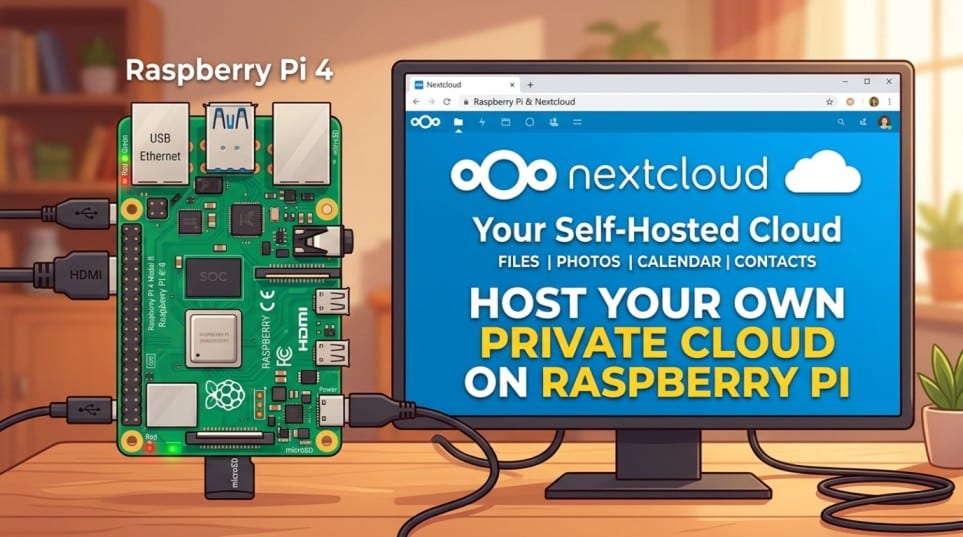
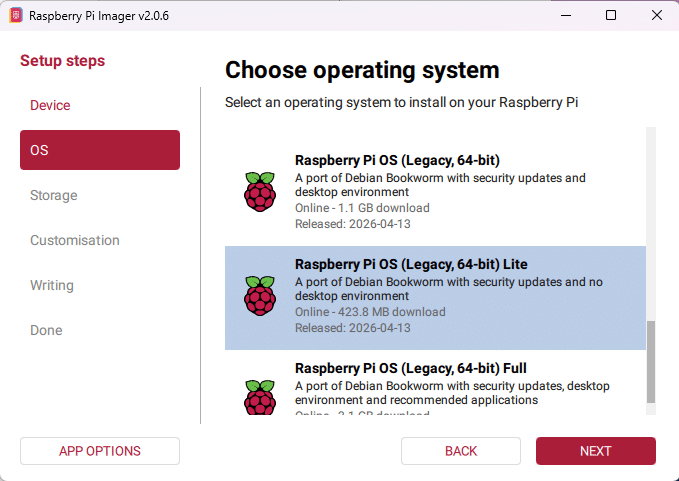
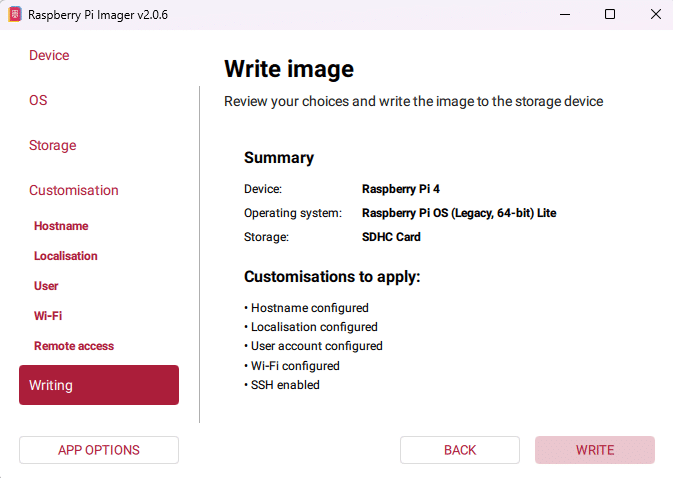
We recommend using the Raspberry Pi OS (Legacy, 64-bit) Lite based on Debian Bookworm. At the time of writing, the newer Debian Trixie release (the current testing branch) has not yet reached full production stability for all Nextcloud dependencies. If you are reading this after mid-2026, Trixie may be fully stable always verify the latest recommendations on the official Raspberry Pi website before proceeding. The Lite version is headless (no desktop environment), which keeps resource usage minimal and is perfect for a server running 24/7.
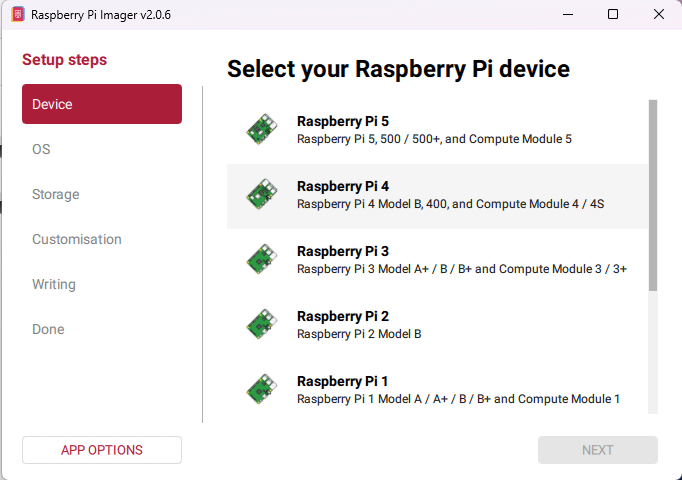
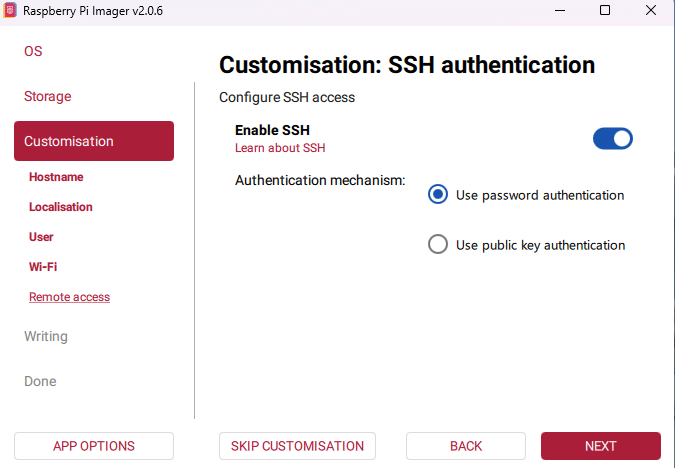
Download the official Raspberry Pi Imager from raspberrypi.com/software. Open the application and click Choose Device. Select your model (Raspberry Pi 5 or Pi 4).
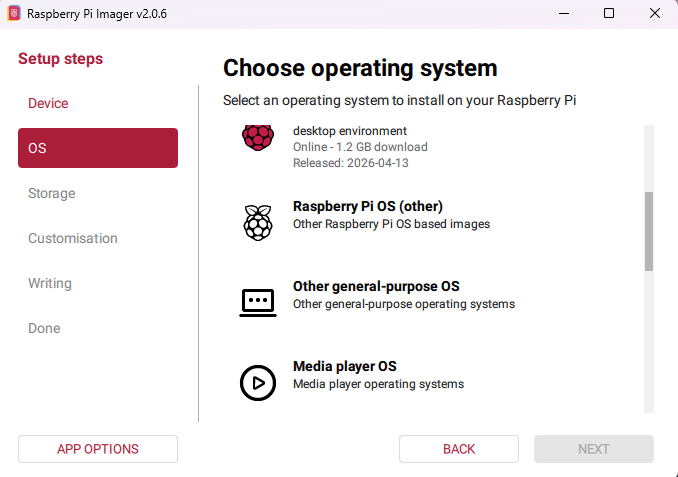
Choose OS → Other → Raspberry Pi OS (Legacy, 64-bit) Lite (Debian Bookworm)
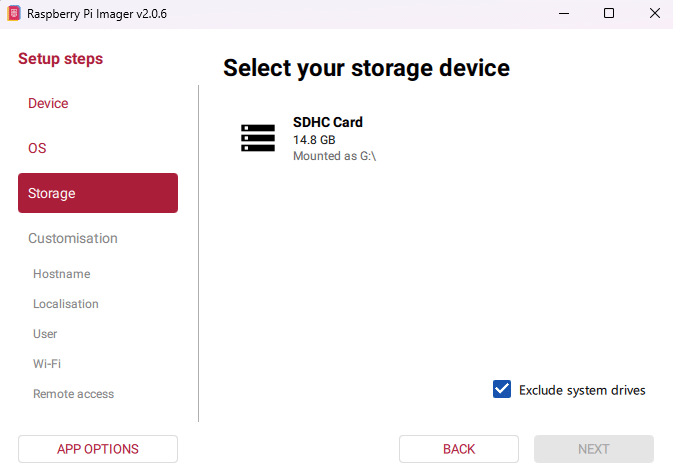
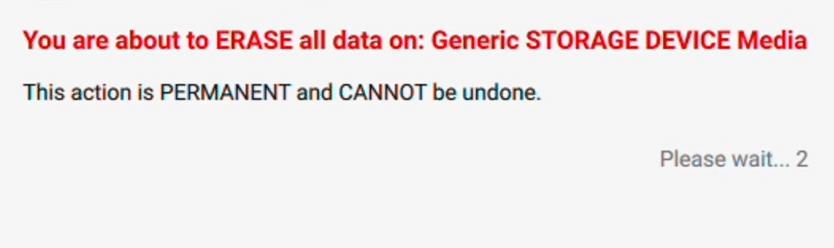
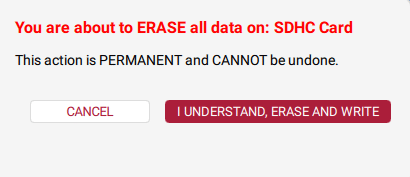
Choose Storage and select your inserted microSD card
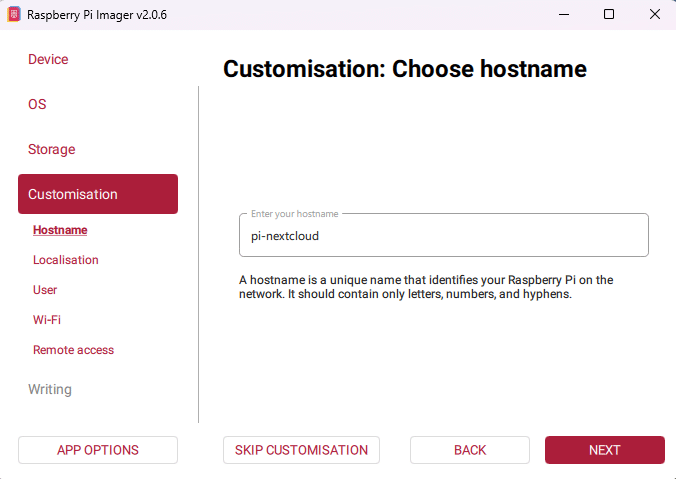
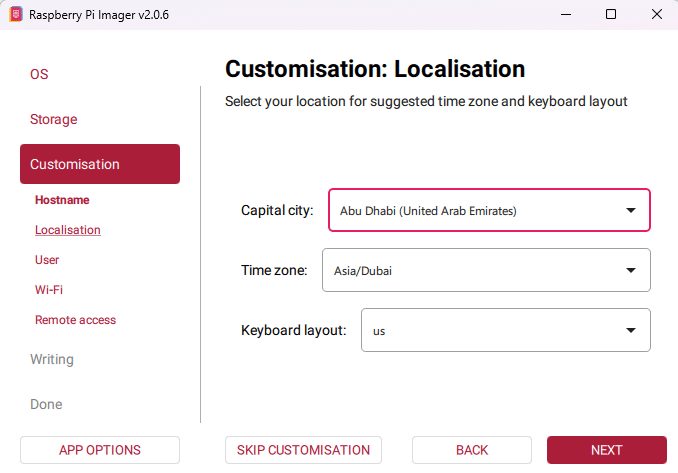
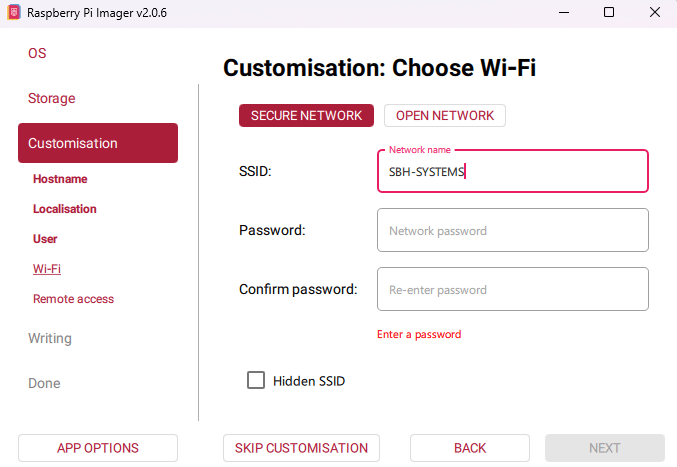
The Pi will boot and automatically connect to your Wi-Fi network.
Once the Pi has booted (the green LED will stop flashing rapidly), find its IP address in your router’s admin panel (usually under “Connected Devices” or “DHCP Clients”).
From your computer, open a terminal (macOS/Linux) or Command Prompt/PowerShell (Windows) and connect via SSH:
$ ssh yourusername@IP-ADDRESS
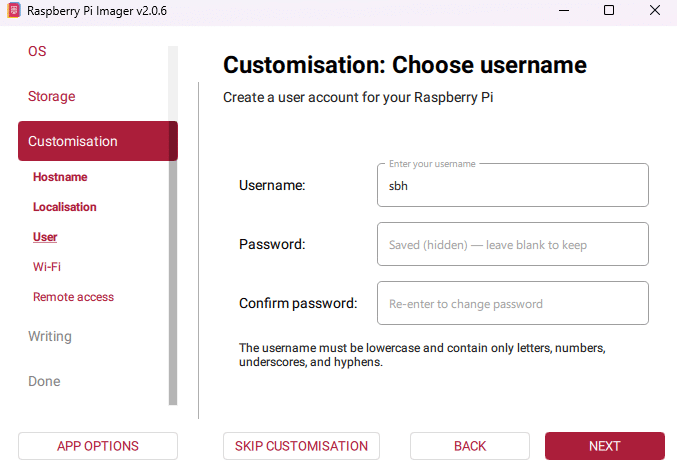
Replace yourusername with the username you set during imaging, and IP-ADDRESS with the actual IP address of your Raspberry Pi. Enter your password when prompted.
🎉 You are now logged into your Raspberry Pi and ready for the next steps.
In the next part of this series, we will secure and update the system, install Snap, and proceed with installing Nextcloud using the official Snap package. This method provides a straightforward, well-maintained way to run Nextcloud on your Raspberry Pi with automatic updates.
Would you like me to write the complete next section (system updates, Snap installation, and Nextcloud setup via Snap) right away, or would you prefer any adjustments to this part first?